Email deliverability is at the heart of how your program communicates with your affiliates. Since launch, Wynta has supported Google Workspace and Mailgun for outbound email and today, we’re adding SendGrid to that roster.
Whether you’re already a SendGrid customer, looking to migrate from another provider or setting up email for the first time, this guide walks you through everything you need to get connected.
Who Can Set This Up?
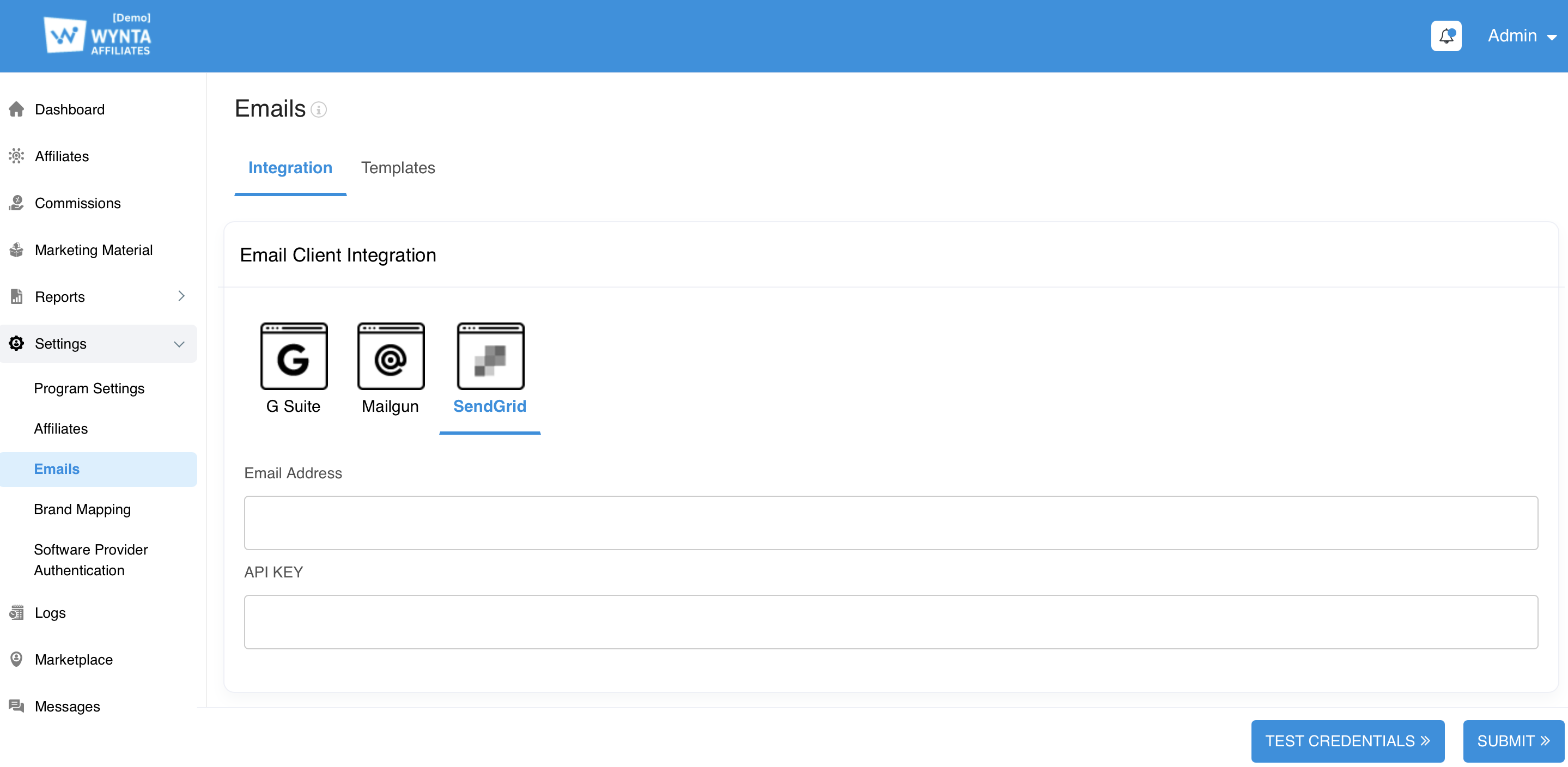
Email integration settings are available to the Account Manager (Program Owner) or any Admin user with access to the Email Integration page in Settings. Once inside, navigate to Settings > Emails > Integration, select your preferred email provider: Google Workspace, Mailgun or SendGrid and fill in the relevant credentials. Each provider’s required fields are described in full below.
Setting Up Your Email Integration
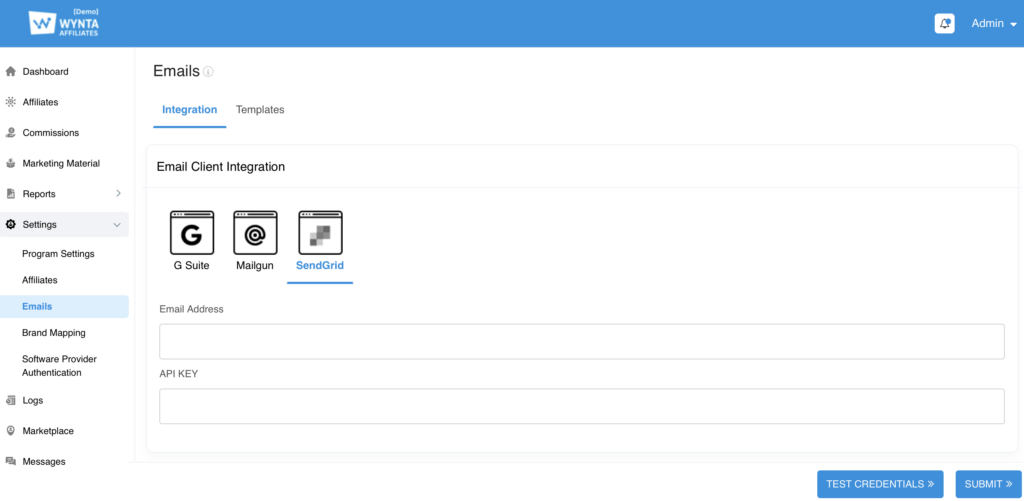
SendGrid (New)
SendGrid is a cloud-based email platform trusted by businesses worldwide for reliable, scalable email delivery. Connecting it to Wynta takes just a couple of fields.
- Navigate to Settings > Emails > Integration and select SendGrid from the provider options.
- In the Email Address field, enter the sender address you would like to use for outbound emails from Wynta.
- In the API Key field, paste your SendGrid API key. You can find or generate this in your SendGrid account under Settings > API Keys. Ensure the key has at least Mail Send permissions.
- Once both fields are filled in, click Submit to store your credentials.
- Click the Test Credentials button to confirm the connection is working.
Google Workspace
Use your organisation’s Google Workspace account to send email directly through Wynta. Because Google requires an App Password for third-party access, there is a small one-time setup step on the Google side first.
Step 1: Generate a Google App Password (External to Wynta)
Google no longer allows regular account passwords to be used with third-party apps. You’ll need to create a dedicated App Password.
- Sign in to your Google Account at myaccount.google.com.
- Go to Security in the left-hand navigation.
- Under How you sign in to Google, ensure 2-Step Verification is turned on. App Passwords are only available when 2FA is enabled.
- In the search bar at the top, type App Passwords and select it from the results.
- You may be prompted to re-enter your Google password.
- Under App name, type a label such as Wynta Affiliate Program, then click Create.
- Google will display a 16-character password. Copy and save it immediately, you won’t be able to see it again.
Step 2: Connect to Wynta
- Navigate to Settings > Emails > Integration and select Google Workspace.
- In the Username field, enter your full Google Workspace email address (e.g. hello@yourorganisation.com).
- In the Password field, paste the 16-character App Password you just generated, not your regular Google account password.
- Click Submit to store the credentials.
- Click the Test Credentials button to confirm the connection is working.
Mailgun
Mailgun is a developer-focused email API service that gives you fine-grained control over deliverability and analytics. Three fields are required to connect it to Wynta.
- Navigate to Settings > Emails > Integration and select Mailgun.
- In the Domain field, enter the sending domain you have verified in Mailgun (e.g. mail.yourorganisation.com). This can be found in your Mailgun dashboard under Sending > Domains.
- In the API Key field, paste your Mailgun Private API Key. Retrieve it from Account Settings > API Keys in your Mailgun account.
- In the Region field, select the data region associated with your Mailgun account – either US or EU. If you are unsure, check the URL you use to log in to Mailgun: app.mailgun.com is US, while app.eu.mailgun.com is EU.
- Click Submit to store your credentials.
- Click the Test Credentials button to confirm the connection is working.
Not sure which provider to choose? If your organisation already pays for one of these services, stick with what you have. If you’re starting fresh, SendGrid and Mailgun both offer free tiers with generous monthly sending limits – either works well with Wynta.
If you have any questions or run into any issues along the way, our support team is happy to help.